Master Your Audio in Real-Time
The ultimate Windows audio equalizer. Studio-grade DSP, and global or per-app configuration—all wrapped in a sleek glassmorphism UI.
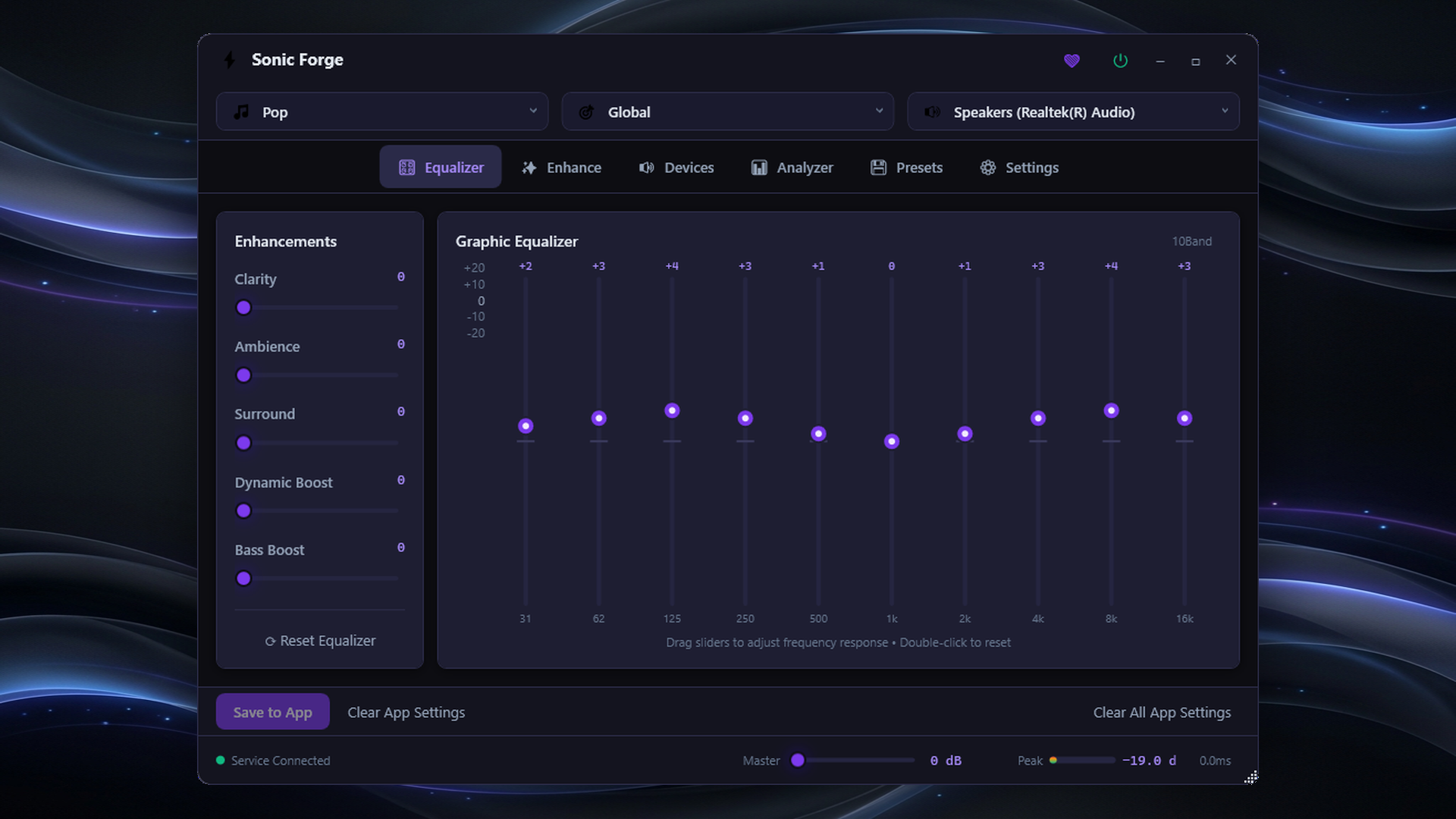
The ultimate Windows audio equalizer. Studio-grade DSP, and global or per-app configuration—all wrapped in a sleek glassmorphism UI.
Fine-tune your audio frequencies precisely with 10-band or 31-band modes. Includes built-in presets for gaming, movies, and various music genres, or create your own.
Apply different equalizer profiles to specific applications. Boost footsteps in games without affecting your background music.
Engineered for maximum performance. Uses raw Core Audio APIs to ensure zero noticeable delay during competitive gaming or media playback.
Take your audio further with spatial surround sound, ambient effects, vocal clarity enhancement, and deep bass boost controls.
Prevent clipping and protect your ears. The built-in digital limiter acts as a safety net against sudden loud noises.
Say goodbye to ugly Windows utility tools. Experience a beautiful dark-mode interface powered by glassmorphism.
Released: August 2026
Download Installer (.exe)Supports Windows 10 & 11 (64-bit)
Smart Volume: Dynamically equalizes perceived loudness. It uses an active envelope follower to ensure quiet whispers and loud explosions are kept at a comfortable, consistent level without stuttering.
Clarity: Specifically targets and enhances vocal frequency bands (2kHz - 5kHz), making dialogue in movies and competitive comms crystal clear.
Ambience: Uses a Stereo Widener algorithm to simulate a wider soundstage. Great for giving headphones a "roomy", cinematic feel.
Low (32Hz - 125Hz): Deep, booming bass. Boost this for cinematic explosions or punchy kicks in electronic music.
Mid (250Hz - 2kHz): Contains most instruments and human vocals. Cut this slightly (around -2dB) if your audio sounds "muddy" or "boxy".
High (4kHz - 16kHz): Contains the "air" and sharp sounds. Boost this heavily in tactical shooters to highlight enemy footsteps and reloads.
AcoustiForge presets are extremely lightweight `.json` files that capture the exact state of the equalizer and DSP enhancements.
You can create and save presets directly in the app. To install a preset from the community, simply download the `.json` file and drop it into %APPDATA%\AcoustiForge\Presets. It will immediately appear in your AcoustiForge dropdown.
Global Mode: Applies your chosen preset to all audio playing through your selected Windows playback device.
Per-Process: Allows you to inject DSP into a specific application (e.g., `cs2.exe`). Simply start your game, open AcoustiForge, and select the game from the application dropdown. Other apps (like Discord) remain unaffected.
AcoustiForge hooks into the Windows Core Audio API to manipulate audio streams directly at the session level. Admin privileges are required to safely intercept and redirect these streams across different processes without being blocked by Windows security.
Yes. AcoustiForge operates entirely within the standard Windows Core Audio APIs. It intercepts audio at the OS level and never injects into or reads memory from the game processes themselves, keeping you completely safe from anti-cheat bans.
OBS captures the raw audio streams from Windows before AcoustiForge's DSP is applied. To capture the equalized audio, set OBS to capture your output device instead of specific application audio, or use a Virtual Audio Cable as an intermediary endpoint.
Stuttering usually occurs due to mismatched sample rates or tight audio buffer sizes. Go to your Windows Sound Control Panel and ensure both your input and output devices are set to the same sample rate (e.g., 48000Hz). You can also try slightly increasing the buffer size in AcoustiForge's advanced settings.
If an application (like Tidal or a DAW) requests Exclusive Mode of an endpoint, Windows will temporarily bypass all Core Audio processing, including AcoustiForge. AcoustiForge will automatically resume processing when the exclusive lock is released.
No. AcoustiForge uses an event-driven architecture that sleeps entirely when no active processing is required or when UI interaction is zero. In the background, it maintains a near 0% CPU footprint.
The limiter acts as a ceiling for your audio. If a sudden loud noise (like an explosion in a game or a jumpscare) exceeds 0dB, the limiter instantly compresses it, preventing audio distortion (clipping) and protecting your hearing.
Ensure that the device is enabled in your Windows Sound Settings. AcoustiForge filters out disabled or virtual devices (like Virtual Audio Cable) to keep the list clean. If it is enabled, it will appear instantly.